Random dynamic IP assignments from TP-Link’s DHCP server often trigger IP conflicts, disconnections, and failed remote access for NAS, cameras, game consoles and smart devices. Static IP Reservation (also called Address Reservation) locks a permanent local IP to a device’s MAC address, removing conflicts and stabilizing continuous network connections. This guide covers setup via the web admin panel and Tether app for Archer, TL-WR and Deco mesh routers.
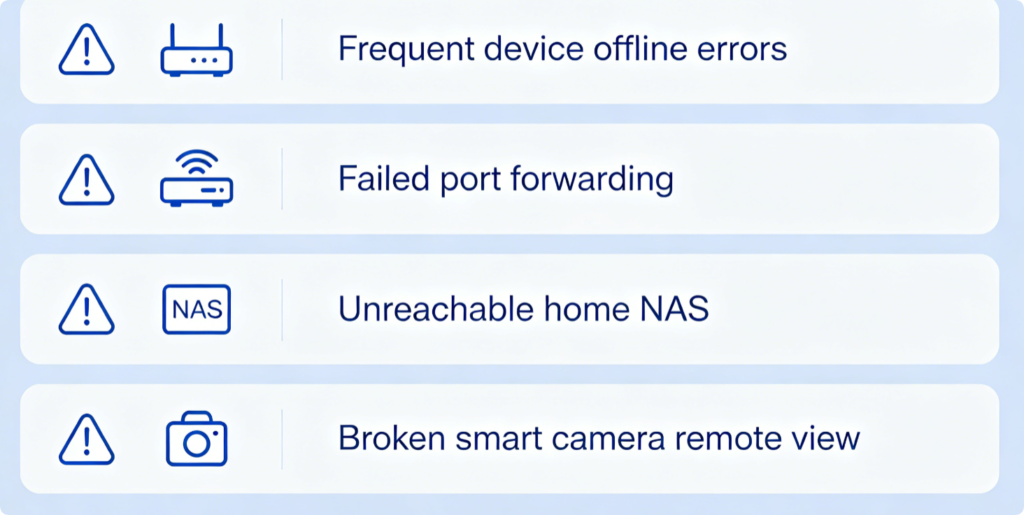
Why Static IP Reservation Is Necessary
- DHCP randomly reassigns IP addresses after router reboots, breaking port forwarding rules
- Two devices grabbing the same IP trigger network collisions and sudden drops
- Smart security cameras, file servers and gaming PCs require fixed local IPs for remote access
- Constant IP changes force repeated manual adjustments of third-party device settings
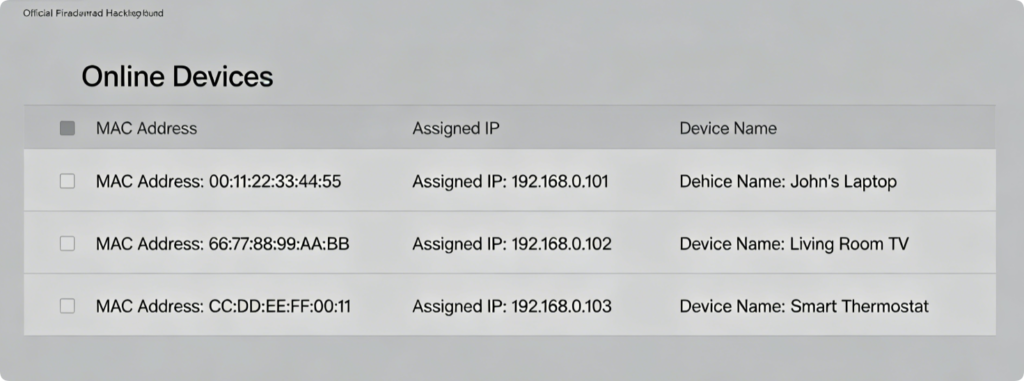
Collect Device Information First
- Log into
tplinkwifi.netand open Advanced > Client List - Check all wired and wireless active devices, record MAC address and temporary IP
- Label each entry clearly: gaming PC, NAS storage, IP camera, smart TV
- Pick unused IPs within your router’s LAN segment (default range: 192.168.1.100–192.168.1.199)
Desktop Web Setup Steps
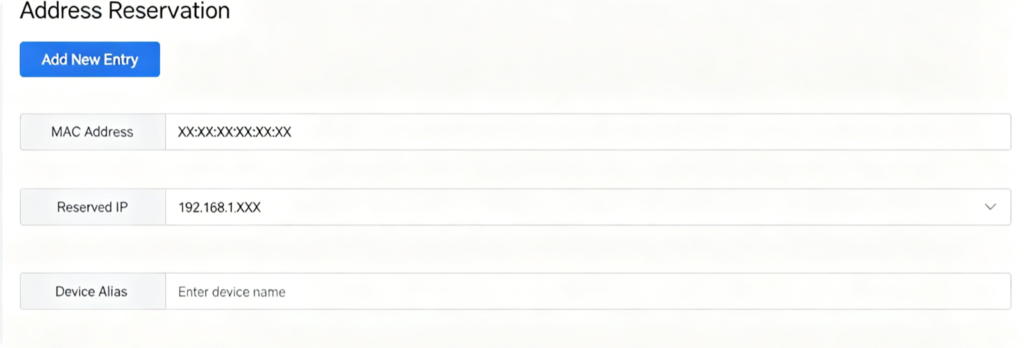
- Navigate Advanced > LAN > Address Reservation
- Tap Add New to create a fixed IP rule
- Paste the copied MAC address, input your chosen permanent local IP
- Type a recognizable device name label and enable the entry
- Save settings and reboot the router to activate all reserved IP assignments
Mobile Tether One-Click Setup
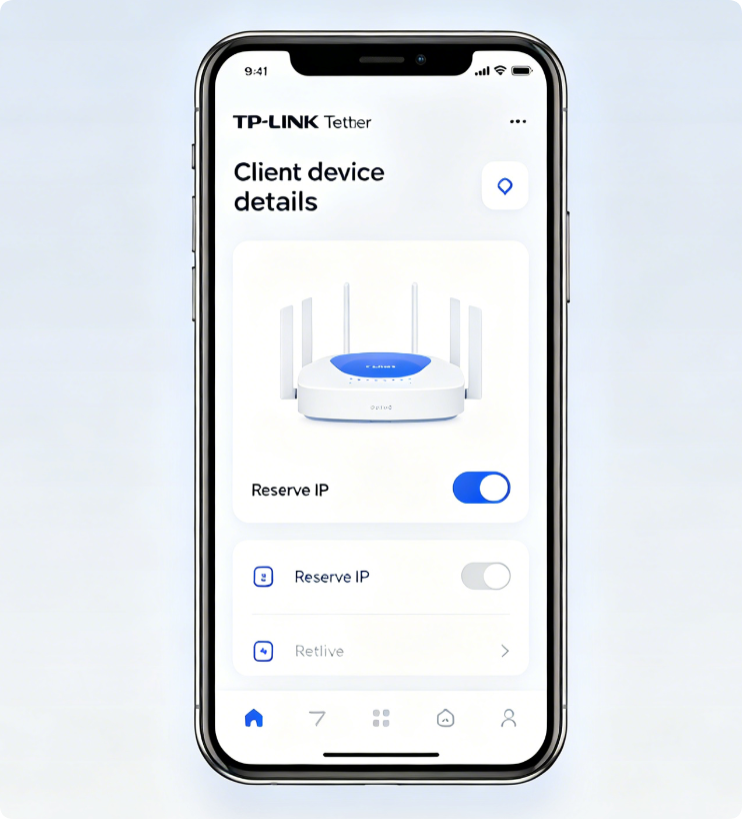
- Connect your phone to the home Wi-Fi network and launch Tether
- Select your router and open the Devices tab
- Tap the target device, find the Reserve IP option
- Customize the fixed local IP and confirm the reservation rule instantly
Special Rule For Deco Mesh Systems
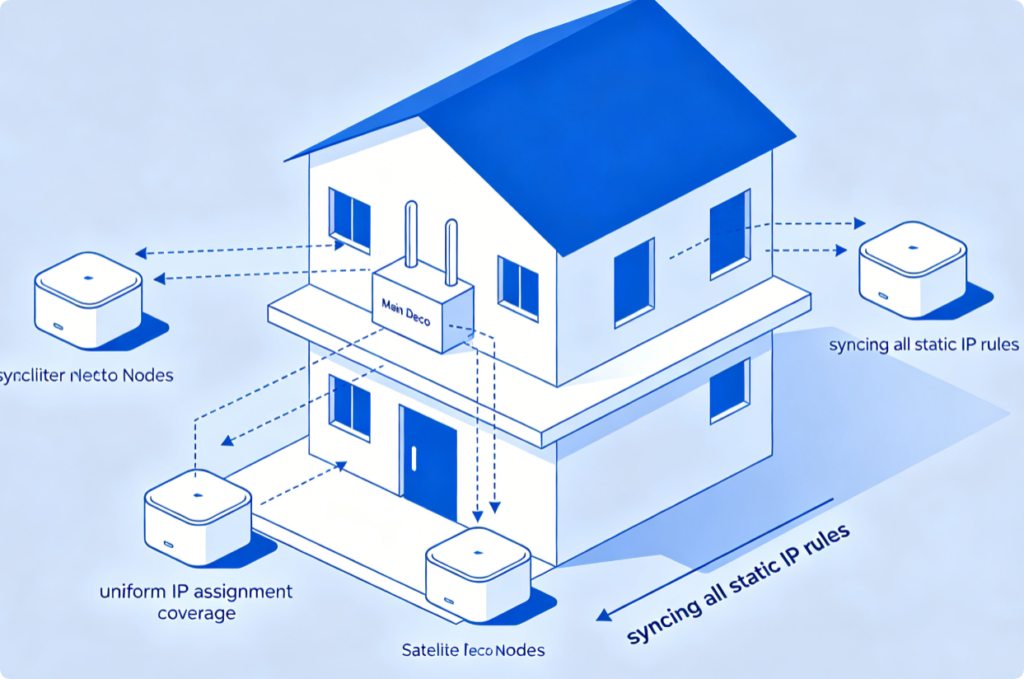
All static IP reservations created on the primary Deco node automatically sync across every mesh satellite. Reserved IP addresses stay consistent in every room, eliminating IP conflicts across the whole-house mesh network without repeating setup on each unit.
Critical Allocation Tips
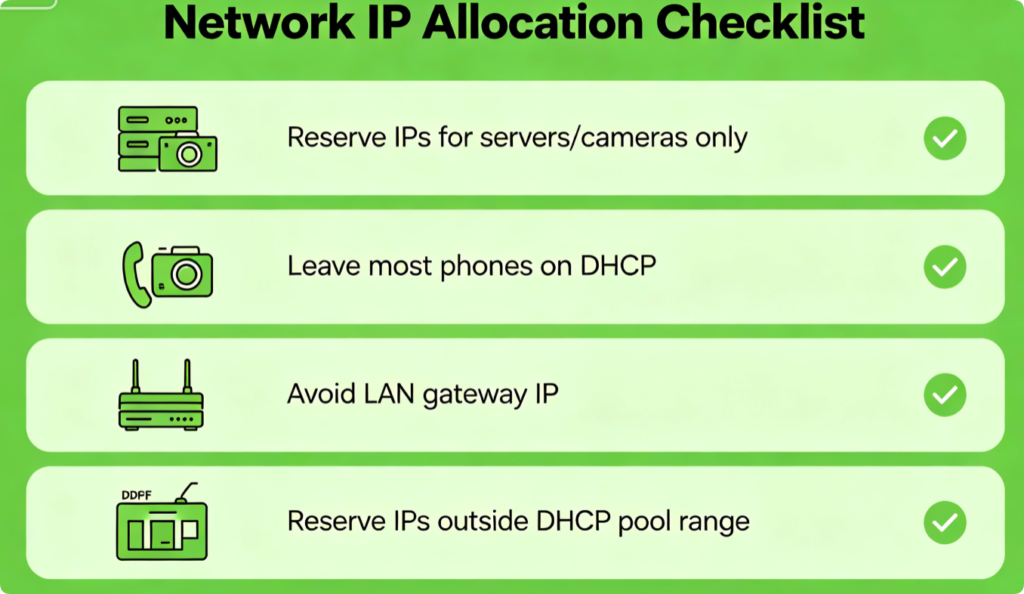
- Only assign static reservations to stationary devices like NAS, cameras and consoles
- Leave mobile phones and tablets on default dynamic DHCP to save reservation slots
- Never reserve the router’s gateway IP (192.168.1.1) for any client device
- Choose IPs outside the auto DHCP pool to reduce background DHCP server load
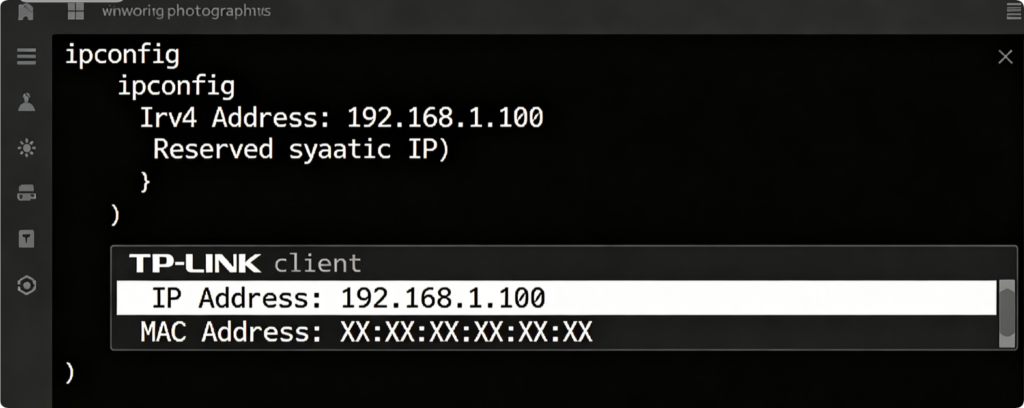
Verify Static IP Takes Effect
- Reboot the target device to trigger new IP assignment
- Check device network details or run ipconfig to confirm the locked local IP
- Reopen port forwarding or remote access tools to confirm no connection failures
Conclusion
TP-Link Static IP Reservation eliminates frustrating IP conflicts and stabilizes critical always-on network hardware. You can create permanent fixed IP rules either on the desktop web panel or portable Tether mobile app, with Deco mesh automatically syncing all reservation settings to every satellite node. Pair reserved IPs with properly configured port forwarding and regular router reboots to maintain consistent, uninterrupted access to your local storage, security cameras and gaming equipment.