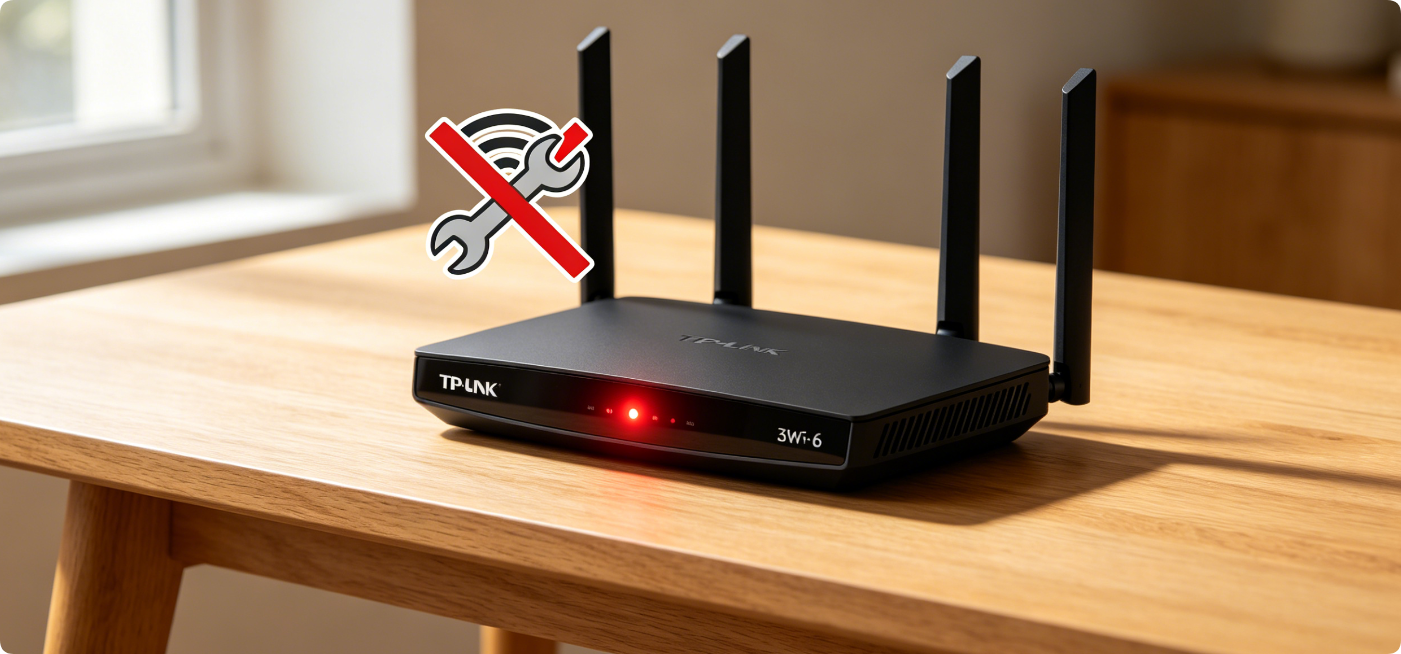
A steady or blinking red internet light on TP-Link Archer, Deco, and TL-XDR series routers signals lost communication with your ISP modem, triggering total Wi-Fi internet blackouts. This troubleshooting guide covers all common root causes and easy DIY fixes, no advanced technical tools required.
Decode TP-Link Red Internet Light Signals
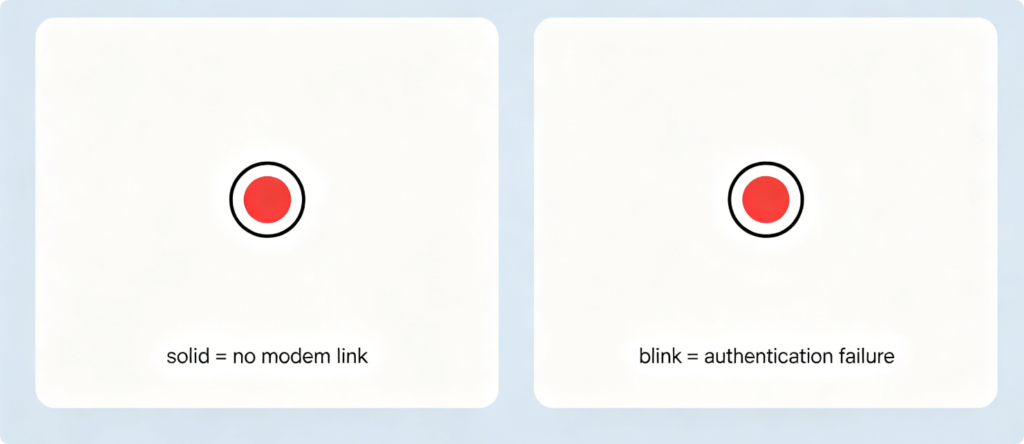
- Solid steady red light: Router cannot detect any signal coming from the ISP modem, hardware/cable connection failure
- Fast blinking red light: Physical link exists, but PPPoE login, IP address or ISP authentication failedBoth patterns fully cut off internet access for all connected home devices.
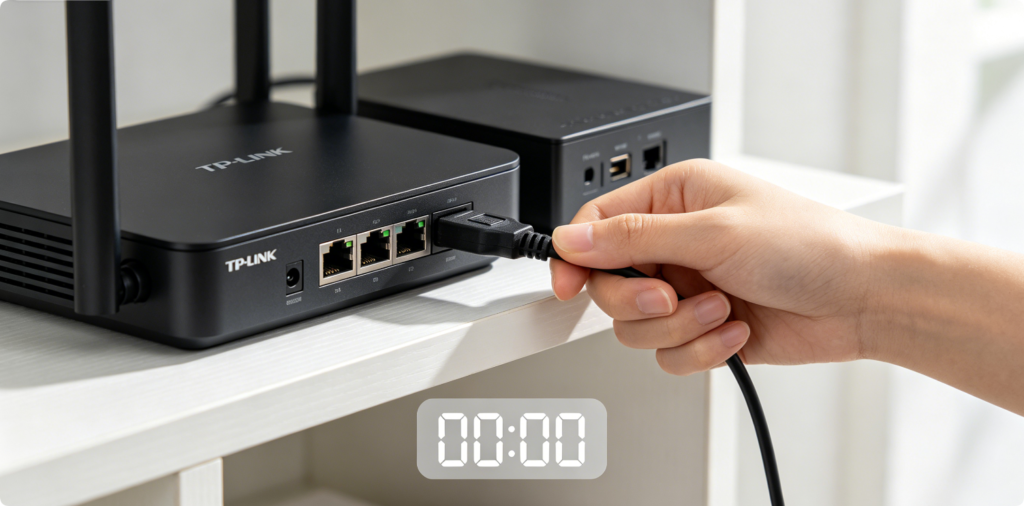
- Unplug power adapters from both TP-Link router and ISP modem.
- Wait a full 60 seconds to drain residual electricity from both devices.
- Plug the modem back first, wait 2 minutes until its online light turns stable blue/green.
- Reconnect router power and check if red internet LED fades away.This resolves temporary ISP signal glitches for 60% of red light cases.
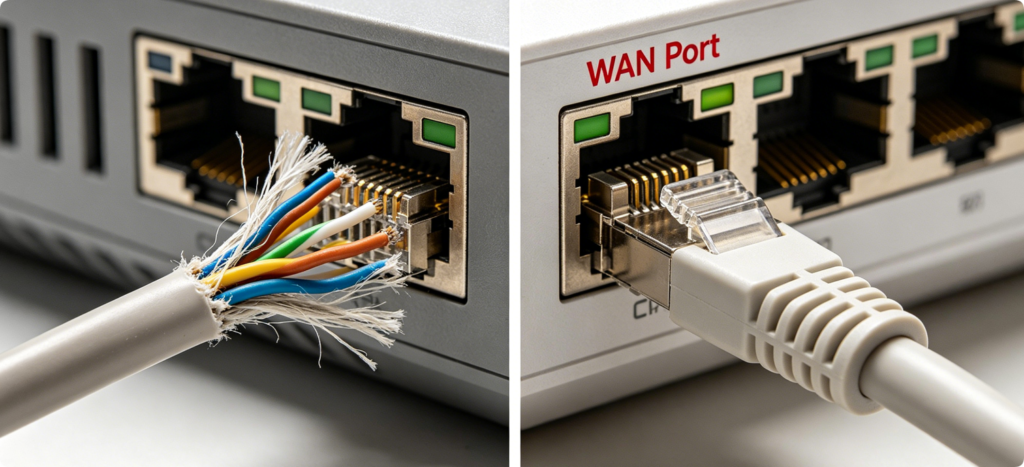
- Examine the cable linking modem to router’s WAN port:
- Cracked outer insulation, bent pins, loose plugs break data transmission
- Swap old Cat5 cables for Cat6, firmly re-seat both WAN and modem Ethernet ends
- Never plug the modem wire into a yellow LAN port—only use the distinct blue WAN port on TP-Link hardware
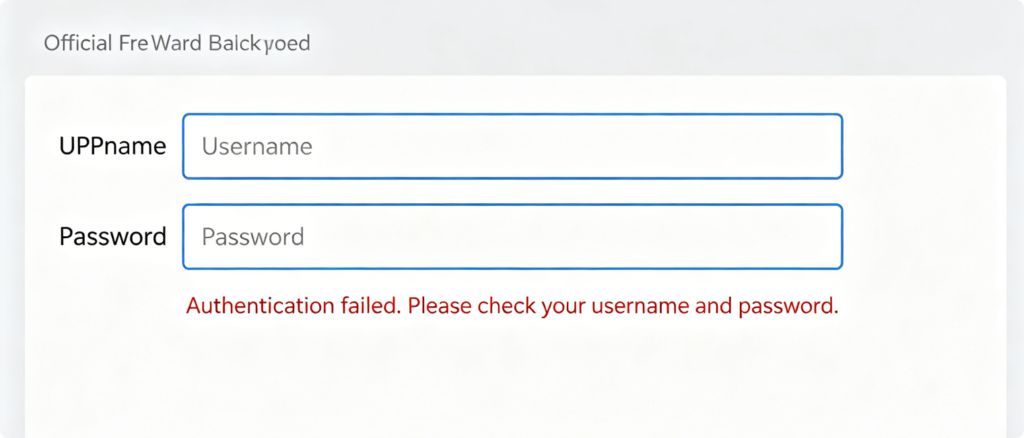
- Log into
tplinkwifi.netvia wired Ethernet and open Advanced > Network > WAN:
- Double-check your ISP-provided PPPoE account name and password
- Contact your internet provider if your account is overdue or suspended
- Switch WAN connection type to DHCP if your ISP uses dynamic IP instead of PPPoE
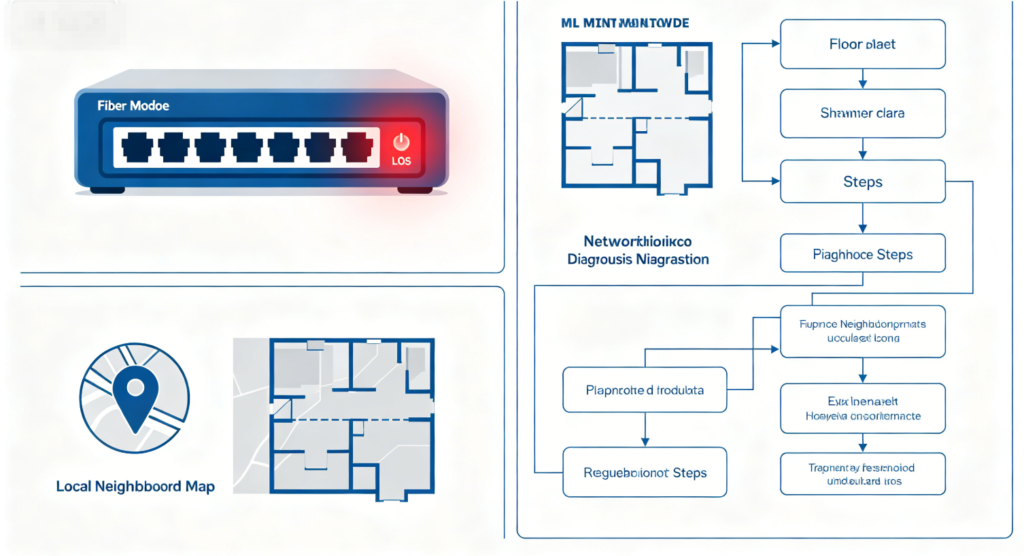
- If modem also shows red LOS/online lights:
- Your area has ISP fiber/cable service outage; wait for provider maintenance
- For fiber connections, check the thin optical line is not bent tightly or disconnected from the wall socket
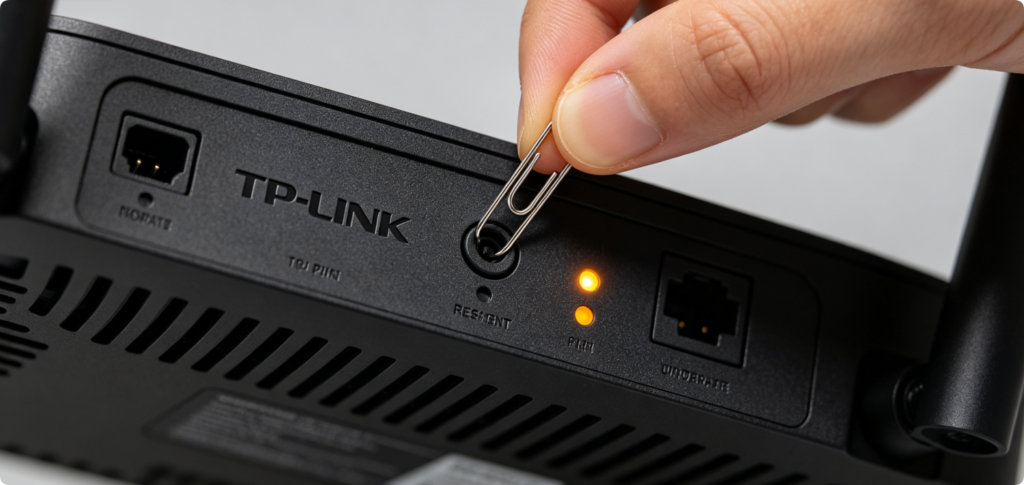
- Persistent red light after all above fixes points to corrupted router configuration:
- Hold the reset pinhole for 10 seconds until all LEDs flash simultaneously
- Re-enter ISP WAN credentials manually after the router restores factory defaults
- Avoid restoring old backup config files if they contain broken WAN settings
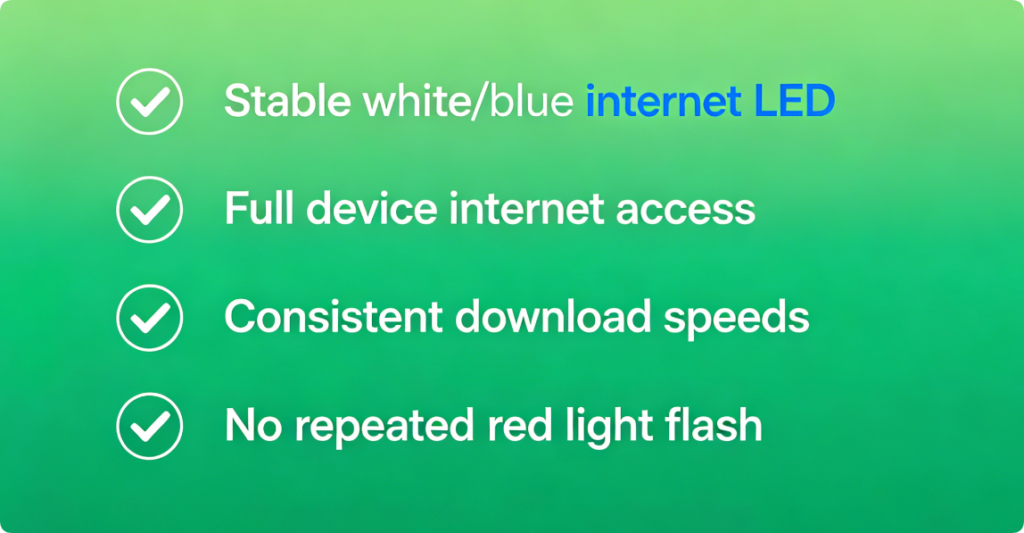
Post-Repair Validation
- Confirm the router internet LED turns solid white or blue (normal online state)
- Connect phones, laptops and smart TVs to browse, stream and test full internet throughput
- Monitor the LED for 30 minutes to ensure the red light does not reappear
Conclusion
TP-Link router red internet lights stem from four core issues: temporary power glitches, faulty WAN cabling, incorrect ISP login data, or regional service outages. Start with a full power cycle of modem and router, then inspect Cat6 WAN connections and verify PPPoE credentials in the web admin panel. Only perform a factory reset as a last resort for unresolvable corrupted configuration. This step-by-step workflow eliminates nearly all red light-induced internet dropouts without professional support.